Install a Fanettiware app
Most Fanettiware apps install from your browser, with no app store and no account. Pick your device below for the exact steps. The “Likely your device” badge is only a guess from your screen size, so both phone and desktop instructions are always shown.
Android
Likely your device
- Open the app you want in Chrome or Samsung Internet. The apps that install this way are listed further down this page.
- Chrome: tap the three-dot menu, then 'Install app' or 'Add to Home screen'. Samsung Internet: tap the menu (three lines), then 'Add page to', then 'Home screen'.
- Tap 'Install' or 'Add' and confirm. The app's icon appears on your home screen next to your other apps.
- Open it once while you are online. After that it mostly works without a connection, so it keeps working on a plane or with no signal.
An app may ask to send notifications for reminders. Reminders only fire while the app is open; they are not alarms.
If it does not work
- No install option in the menu? Make sure you opened the app’s own page (an address that starts with /apps/), not a preview or a file on your phone.
- The icon opens a normal browser tab instead of a separate app window? Remove the shortcut and add it again from the browser menu.
- Samsung Internet names the option differently: look under the menu for "Add page to", then "Home screen".
Windows
Likely your device
- Web app: open the app in Edge or Chrome. In Edge, open the Apps menu and choose 'Install this site as an app'. In Chrome, open the three-dot menu and choose 'Install'.
- Download: on the Software page, download the app’s Windows zip. Right-click the zip, choose Extract All, then open the extracted folder.
- Double-click the app’s launcher file (ends in .cmd). It opens the app in an Edge app window, or in Chrome if Edge is not available.
- Keep the extracted folder where it is. Your data lives in the browser profile, not in that folder, so installing an update means extracting the new zip over the old folder.
Windows may show a SmartScreen warning for a new download. Only run a zip you downloaded from this site, and use the Software page link each time rather than an old copy.
If it does not work
- The launcher flashes a window and closes: check that the folder was fully extracted, not opened from inside the zip.
- The launcher opens your default browser instead of Edge: install Microsoft Edge (it is free) or use the web app in Chrome instead.
- The zip will not open: right-click it, choose Properties, and tick "Unblock" if Windows shows one, then extract it again.
iPhone and iPad
Likely your device
- Open the app in Safari. The Add to Home Screen option is not in Chrome or Firefox on iPhone or iPad.
- Tap the Share button (the square with an arrow), then scroll down and choose "Add to Home Screen".
- Give the shortcut a name and tap Add. It appears on your home screen and opens without the Safari address bar.
These are web apps, not App Store downloads. They open in their own window, keep working offline after the first visit, and store your data on the device.
If it does not work
- No Add to Home Screen in the Share sheet? Scroll the list of actions to the bottom and choose Edit Actions to add it.
- The app opens in a normal Safari tab: delete the shortcut and add it again from the app’s own page.
Other devices
Likely your device
- Use a current version of Chrome, Edge, Firefox or Safari. Very old browsers may show the page but not install it.
- Open the app’s page and look for an install icon in the address bar, or an "Install" or "Add to Home Screen" entry in the browser menu.
- If the browser has no install option, keep the page as a bookmark. The app still works in a normal tab and saves data on the device.
Mac support is planned for a later phase. The site and the web apps can still be used in a browser on a Mac.
If it does not work
- No app-like install on this browser? The app still works in a tab; your data stays on the device either way.
Apps you can install this way
Each of these runs in the browser and gets its own icon. Nothing needs an account.
- Event Planner · Parties and Guest Lists
- Fuel Log · Mileage and MPG
- Garden Planner · Beds, Sowing and Harvest
- Hydration · Water Intake Tracker
- Interval Timer · HIIT, Rounds and Circuits
- People Notes · Stay in Touch
- Pet Care
- Practice Log · Skills and Instruments
- Reading Log
- Score Keeper · Game Night Scores
- Time Tracker · Hours and Timesheets
- Trip Planner · Day-by-Day Itinerary
Apps install from the browser and keep their data on your device. There is no cloud copy and nothing to sign in to. Back up inside the app if it offers a backup button.
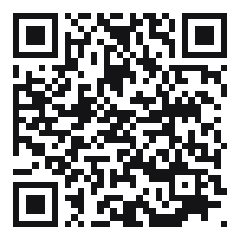
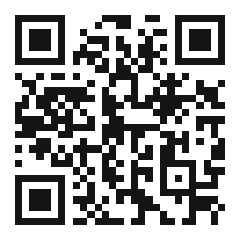
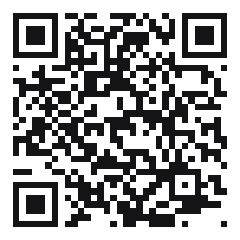
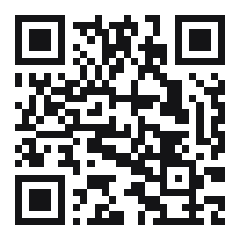
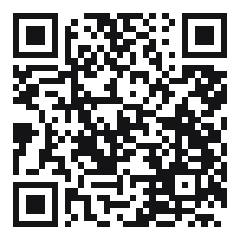
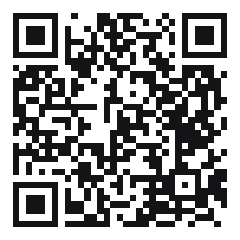
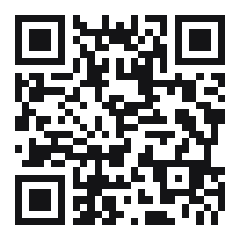
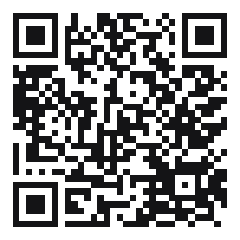
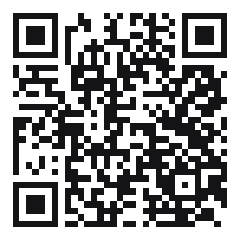
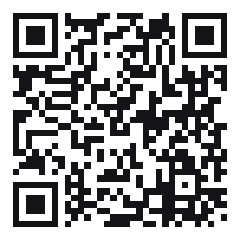
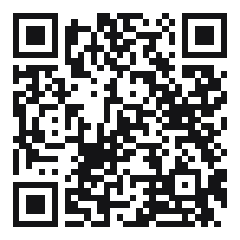
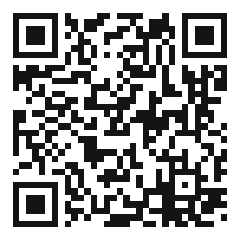
Scan to install on your phone
Point your phone's camera at a code and open the link it shows. Each one goes to the app's own page, where you can add it to your home screen. The codes are made here from the same addresses as the list above; they contain no tracking and call no other server.
Every public file, size and checksum is listed in the download centre.
Building an app? See the update-banner pattern.
Still stuck? Get support, read what each app does, or see every download and hosted app.